|
Starting the Application
|
|


|
Original instructions
|
|
Starting the Application
|
|
|
Original instructions
|
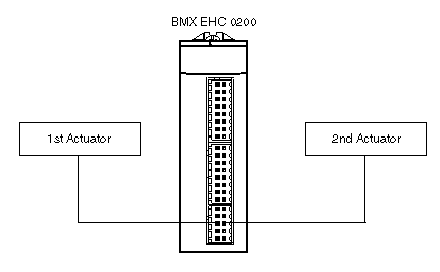
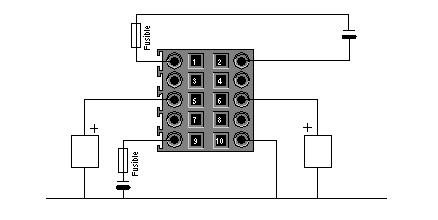
|
Pin number
|
Symbol
|
Description
|
|---|---|---|
|
1
|
24V_IN
|
24 VDC input for input supply
|
|
2
|
GND_IN
|
0 VDC input for input supply
|
|
5
|
Q0-1
|
Q0 output for counting channel 1
|
|
6
|
Q0-0
|
Q0 output for counting channel 0
|
|
7
|
Q1-1
|
Q1 output for counting channel 1
|
|
8
|
Q1-0
|
Q1 output for counting channel 0
|
|
9
|
24V_OUT
|
24 VDC input for output supply
|
|
10
|
GND_OUT
|
0 VDC input for output supply
|
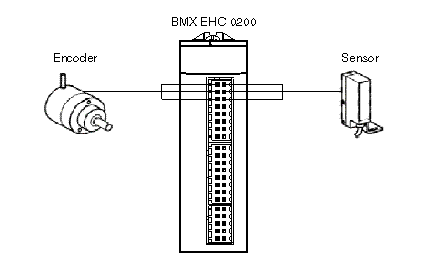
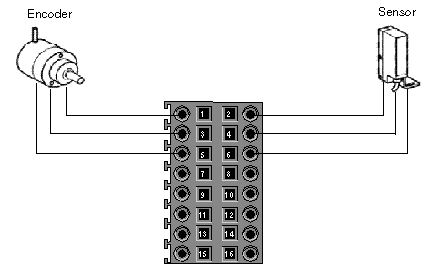
|
Pin number
|
Symbol
|
Description
|
|---|---|---|
|
1, 2, 7, 8
|
24V_SEN
|
24 VDC output for sensor supply
|
|
5, 6, 13, 14
|
GND_SEN
|
0 VDC output for sensor supply
|
|
15, 16
|
FE
|
Functionnal ground
|
|
3
|
IN_A
|
Input A
|
|
4
|
IN_SYNC
|
Synchronization input
|
|
9
|
IN_B
|
Input B
|
|
10
|
IN_EN
|
Enable input selected
|
|
11
|
IN_REF
|
Homing input
|
|
12
|
IN_CAP
|
Capture input
|
|
Step
|
Action
|
|---|---|
|
1
|
In the PLC menu, click on Standard Mode,
|
|
2
|
In the Build menu, click on Rebuild All Project. Your project is generated and is ready to be transferred to the PLC. When you generate the project, you will see a results window. If there is an error in the program, Control Expert indicates its location if you click on the highlighted sequence.
|
|
3
|
In the PLC menu, click on Connection. You are now connected to the PLC.
|
|
4
|
In the PLC menu, click on Transfer project to PLC. The Transfer project to PLC window opens. Click on Transfer. The application is transferred to the PLC.
|
|
5
|
In the PLC, click on Execute. The Execute window opens. Click on OK. The application is now being executed (in RUN mode) on the PLC.
|
