|
Creating the Operator Screen
|
|


|
Original instructions
|
|
Creating the Operator Screen
|
|
|
Original instructions
|
 . By clicking on this button, you can validate what is written.
 |
Step
|
Action
|
|---|---|
|
1
|
In the Project browser, right click on Operator screens and click on New screen.
The operator screen editor appears.
|
|
2
|
Click on the
 and position the new button on the operator screen. Double click on the button and in the Control tab, select the Run variable by clicking the button and position the new button on the operator screen. Double click on the button and in the Control tab, select the Run variable by clicking the button  and confirm with OK. Then, enter the button name in the text zone. and confirm with OK. Then, enter the button name in the text zone. |
|
Step
|
Action
|
|---|---|
|
1
|
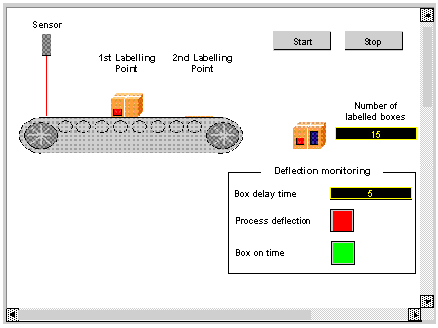
In the Tools menu, select Operator screens Library. Double click on Machine then Conveyor. Select the dynamic conveyor from the runtime screen and Copy (Ctrl+C) then Paste (Ctrl+V) it into the drawing in the operator screen editor.
|
|
2
|
The conveyor is now in your operator screen. You now need a variable to animate the wheels. Select your conveyor then click on
 . A line on the wheel is selected. . A line on the wheel is selected. Press enter and the object properties window opens. Select the Animation tab and enter the concerned variable, by clicking on
 (in the place of %MW0). (in the place of %MW0). In our application, this will be Encoder.INPUT_A, the physical input A state. Confirm with Apply and OK.
|
|
3
|
Click on
 to select the other lines one by one and apply the same procedure. to select the other lines one by one and apply the same procedure. |
 to access the I/O objects list.
 |
Step
|
Action
|
|---|---|
|
1
|
Click on
 and position it on the operator screen. Double click on the text and select the Animation tab. and position it on the operator screen. Double click on the text and select the Animation tab. |
|
2
|
Tick the Animated Object checkbox, select the concernd variable by cliking on
 and confirm with OK. and confirm with OK. |
