For some programming languages there are restrictions to observe when converting a project from Concept to Control Expert.
Conversion of the picture
When converting a Concept project to Control Expert, the ladder diagram LD Picture is also converted, which can lead to a restructuring of the picture.
Crossovers with connections between Boolean objects
In Concept, FFB connections between Boolean objects may be edited.
This may result in crossovers.
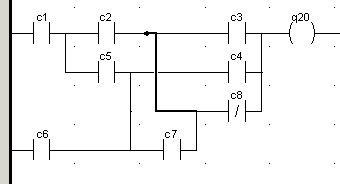
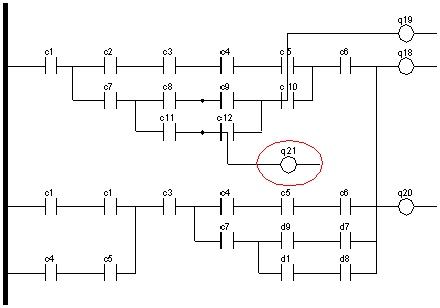
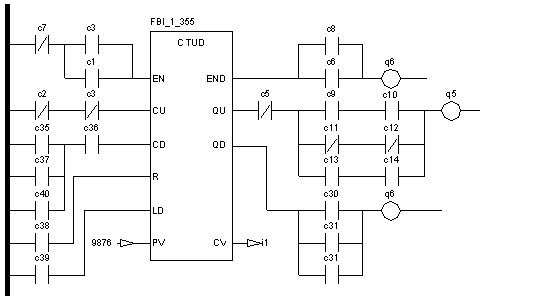
Example of an FFB connection between Boolean objects (coils, contacts, horizontal, and vertical connections) in Concept:
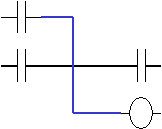
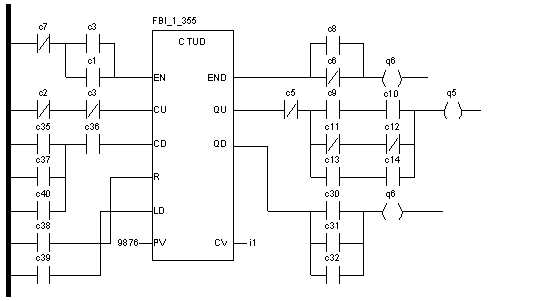
Following the conversion from Concept to Control Expert, an FFB connection between Boolean objects may look like this:
In the Control Expert LD Editor, such FFB connection may be:
-
deleted,
-
moved,
-
copied and pasted.
However, such FFB connection cannot be created in the Control Expert LD Editor.
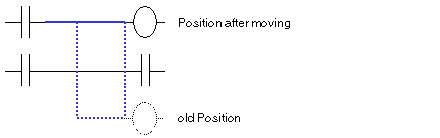
The FFB connection will remain after moving in Control Expert.
Connection to the right bus bar
A connection to the right bus bar is no longer required.
Automatically created connections
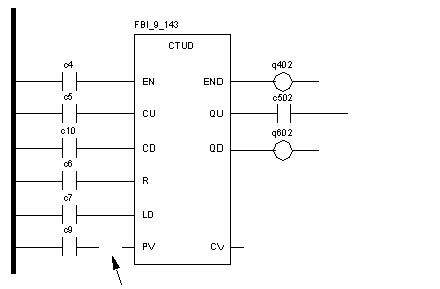
In Concept, the contact c9 is not connected with INPUT PV of the component.
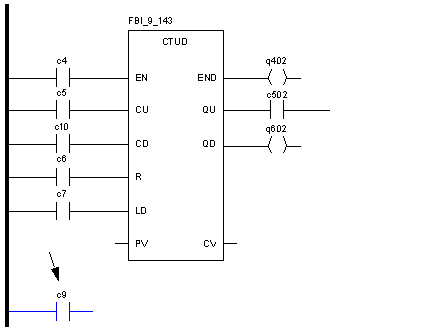
In Control Expert, the contact c9 would automatically be connected with INPUT PV because both cells directly border in Concept.
During the conversion from Concept to Control Expert, the contact c9 is therefore moved down to avoid the creation of an automatic connection in Control Expert.
Conversion of the output picture
During the conversion it is desired that the conversion of the picture from Concept to Control Expert is as exact as possible. To achieve this, the following rules are applied.
Rules for Object Positioning:
-
The distance between two objects must be at least one cell.
-
When two FFBs are connected, the minimum distance must equal the number of cells of the first FFB’s width.
-
The cells in Control Expert are smaller. If an FFB partially occupies another cell, an additional cell is required for the FFB.
-
If an object (contact or coils) has a vertical connection (OR Link), this vertical connection will be located at the end of the cell of the object.
-
An additional cell is required if:
-
a vertical connection (OR Link) with an INPUT FFB exists
-
the source FFB has output variables
-
the target FFB has input variables
-
A coil may not be directly connected to the left bus bar.
Rules for the conversion of FFB connections:
-
FFB connections between variables/constants and FFBs will be ignored. In these cases, Control Expert will automatically create a connection.
-
Purely horizontal FFB connections between objects that are not FFBs will be replaced with horizontal connections with multiple segments.
-
When two OR objects are connected, a horizontal connection is first connected to the right side of the source OR object. An FFB connection will then be created between this horizontal connection and the target object. This occurs because the two OR objects would otherwise be combined during the import into Control Expert.
-
Each point of the left bus bar can only be occupied by one connection.
Example of a picture in Concept:
The picture after the conversion to Control Expert.
The following actions were performed during the conversion according to the rules above:
-
The space that is occupied by the FFB was expanded to two columns.
-
One column each was added at the Input and Output sides of the FFB.
-
The connections between coils/contacts and the FFB were realized with FFB connections, not with horizontal connections with multiple segments.
Recognize and disconnect LD Networks
The converter must recognize networks in LD sections during the conversion. To achieve this, the following rules are applied:
-
An LD Network is a group of objects that are connected with each other without any other connections to other objects (except the bus bar).
-
The minimum distance is always applied to a complete column of a network. This means that if an object of a column requires a certain minimum distance, all other objects are also moved with a higher or equal horizontal position.
-
If there are several networks in the same row in Concept, the following network will be moved vertically until it no longer occupies the same rows with the preceding network.
-
To avoid undesired automatically created FFB connections, the space that is occupied by an FFB and its connection space will be checked for crossovers. In the event of crossovers the following objects will be moved horizontally.
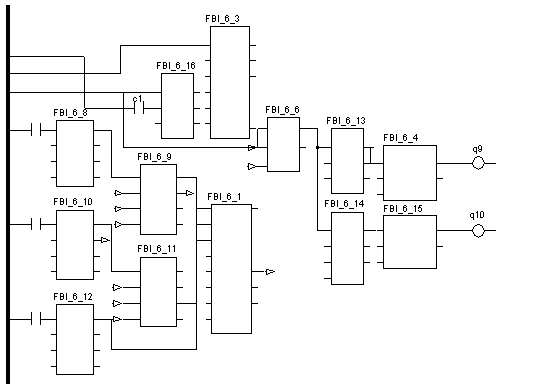
Schematic diagram of an LD Network in Concept with crossovers
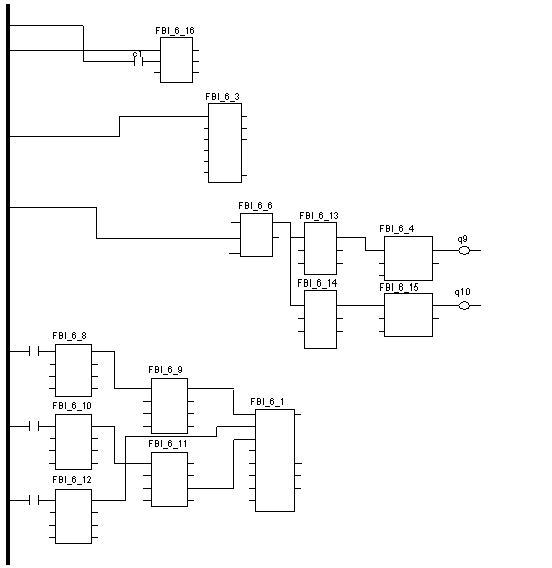
Schematic diagram of an LD Network after the conversion to Control Expert
IEC LD sections contain many independent graphic areas (networks).
During the conversion of IEC LD sections, additional columns are added to the networks to avoid undesired automatically generated links in Control Expert.
If the additionally inserted columns were to extend across the entire section, the original graphic would be modified too much. Therefore, the sections are divided in networks during the conversion and additional columns are only inserted for the associated network.
Inserting additional columns may cause a network to exceed its maximum section width and it is then wrapped into the next line.
If this causes networks to vertically overlap, the overlapping of the logic can lead to undesired automatic links in Control Expert.
Open the Conversion Settings tab via Tools → Options in Control Expert to enable/disable the Separate LD Networks check box before converting.
-
When this checkbox is enabled, recognized networks are moved vertically, which prevents overlapping.
-
When this checkbox is not enabled, recognized networks are not vertically moved. The original vertical arrangement of the graphics is maintained, but error messages may occur due to overlapping.
Inserting additional columns may cause a network to exceed its maximum section width and it is then wrapped into the next line.
Open the Conversion Settings tab via Tools → Options in Control Expert to edit the LD Column Break option before converting.
The number entered here determines the column after which a network is wrapped to the next column.
Wrapping networks that are too wide
Since the width of the networks is expanded during the conversion the maximum section width may be exceeded.
To show the network that is now too wide, the part of the network that reaches beyond the far right edge of the section will be shown in a new row.
The connections are shown as connectors.
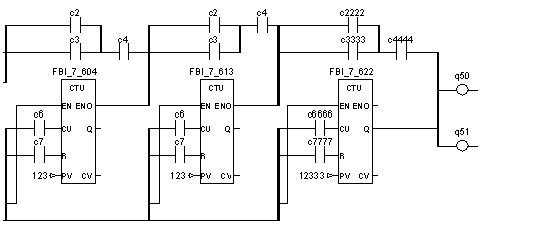
Example of an LD Network in Concept.
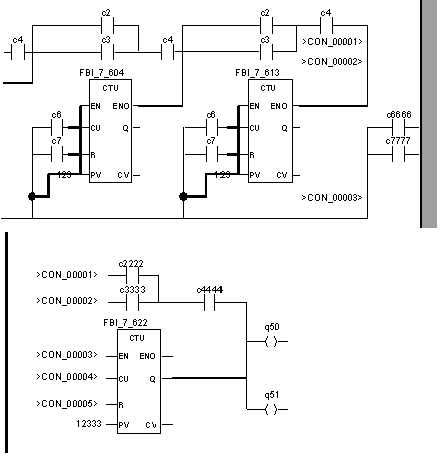
The wrapped LD Network after the conversion to Control Expert.
Objects to recognize transitions
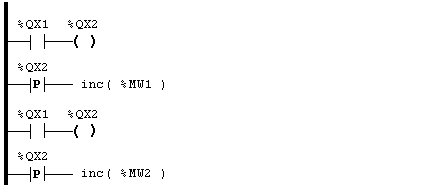
The different ways of handling ladder diagram LD objects in Concept (calling an FB) and in Control Expert (system call) makes the use of State RAM variables (0x/1x register) necessary.
Because of the requirement that several write accesses to the 0x/1x register are possible during a cyclical sweep, there can be differing Online behavior between Concept and Control Expert.
The objects affected are:
In Concept the "Old Value" to recognize a transition will only be updated once per cycle.
In Control Expert the "Old Value" will be updated during every write access.
Example:
Concept: Switch %QX1 from 0 -> 1 and the value of %MW1 and %MW2 increase.
Control Expert: Switch %QX1 from 0 -> 1 and only the value of %MW1 increases.
NOTE: Use objects to recognize transitions with a certain variable only once per cycle.
Macros (name begins with @) will be rejected by the converter because macros cannot be implemented in Control Expert. However, if you try to import an application with macros, the macros will be replaced with Dummy DFBs (indicated with the ‘~’ in the application name).
Error messages regarding these Dummy DFBs will appear during the analysis of the project. To correct these errors, simply remove all DFBs that were created to replace macros.