|
Display of Slave Status
|
|


|
(Original Document)
|
|
Display of Slave Status
|
|
|
(Original Document)
|
|
Scenario
|
Illustration
|
Explanation
|
|---|---|---|
|
1
|
Slave status:
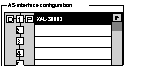 |
The slave P specified in configuration and the detected slave D are identical.
|
|
2
|
Slave status:
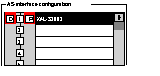 |
The slave P specified in configuration and the detected slave D are not identical. The slave is declared faulty (1).
|
|
3
|
Slave status:
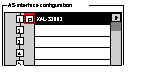 |
A slave P is specified at configuration but no slave is detected. The slave is declared faulty (1).
|
|
4
|
Slave status:
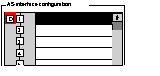 |
An additional slave, not specified at configuration, is connected to the bus. The slave is declared faulty (1).
|
|
Key:
|
||
|
(1)
|
When a slave is faulty, the icons situated beside the number, as well as the AS-i Bus Diag. button and Fault tab turn red.
|
|
|
Note: The Profile field in the Slave area of the debug screen allows you to check if the profiles of the specified (Projected) slave and the Detected slave are really identical.
|
||
