|
Configuration of the Lexium 05 Node
|
|


|
(Original Document)
|
|
Configuration of the Lexium 05 Node
|
|
|
(Original Document)
|
|
Step
|
Action
|
|---|---|
|
1
|
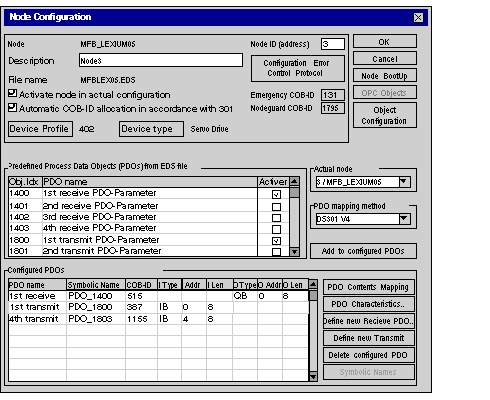
In the main screen, double-click on Node 3.
Result: the node configuration screen is displayed:
 |
|
2
|
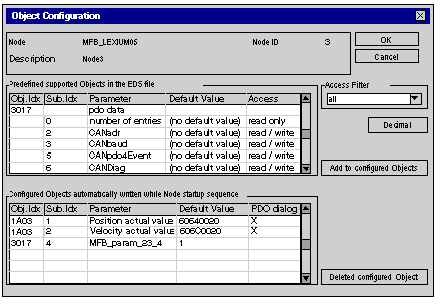
Click on Object Configuration.
Result: the object configuration window is displayed.
|
|
3
|
In the Predefined supported Object in the EDS file zone, find and double-click on object 3017 sub-index 4.
Result: object 3017 sub-index 4 is dragged to the table in the Configured Objects zone:
 |
|
4
|
Click OK to confirm object configuration.
|
|
5
|
Click OK to confirm node configuration.
|
|
6
|
Save the CANopen project with the name MFB_Lexium05.co.
Note: remember where the .CO file is saved since the configuration will be imported in Control Expert.
|
|
Type of servodrive
|
Name given to node
|
Name of .eds file
|
PDOs to add
|
Configuration object to add
|
|---|---|---|---|---|
|
Lexium 05
|
MFB_LEXIUM05
|
MFBLEX05.eds
|
1st receive PDO
1st transmit PDO
4th transmit PDO
|
3017 sub-index 4
|
