


Overview
After having
checked that SFC sections are in correct state, it is possible to
use RESUME input to set all SFC charts to enabled
action and transition mode.
For behavior in case of interaction with SFCCNTRL function block please refer to Interaction with SFCCNTRL Function Block.
Check SFC Charts
| WARNING | |
|---|---|
Performing a Complete Restore Cycle
To perform a complete restore cycle of SFC charts, you must perform the following steps:
Step |
Action |
Comment |
|---|---|---|
1 |
Load application. |
Must be the same application that did the save of the steps. This action may be optional, depends on the situation. |
2 |
Reset |
This prevents overwriting of saved data. |
3 |
Reset |
- |
4 |
Perform a . |
Already done if application is newly loaded. This action may be optional. |
5 |
Set |
The rising edge will initiate the restore of all charts in the next executed SFC section. Should
be set before RUN to bring SFC into |
6 |
Run application. |
- |
7 |
Reset |
- |
8 |
Check SFC charts. |
The rising edge of Note: Be careful to ensure that no harm can occur before activating SFC charts. See safety message Check SFC Charts above. |
9 |
Individually enable the charts using the . |
This action may be optional, depends on the situation. |
10 |
Set |
Rising edge of Note: This will remove |
11 |
Reset |
- |
12 |
Set |
After system works well again, probably enable again to save the active steps. |
Timing Diagram
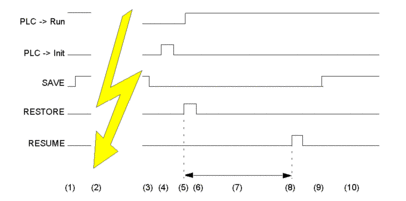
1 Normal operation.
2 CPU failure.
3 Reset SAVE input.
4 Perform a PLC -> Init.
5 Set RESTORE input and PLC -> Run.
6 Reset RESTORE input.
7 As a result of (5) all SFC actions/transitions are disable. It is now possible to enable SFC actions/transitions using the SFC Animation Panel.
8 Set and reset RESUME input.
9 Set SAVE input.
10 Normal operation.