|
How to Add a TBX SAP 10 Module
|
|


|
(Original Document)
|
|
How to Add a TBX SAP 10 Module
|
|
|
(Original Document)
|
|
Step
|
Action
|
|---|---|
|
1
|
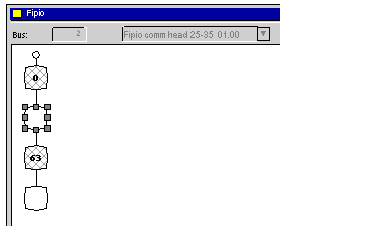
In the Fipio sub-directory of the Configuration directory, select the Open command from the contextual menu.
Result:
 |
|
2
|
In the Fipio network, select a square representing a connection point containing no address.
|
|
3
|
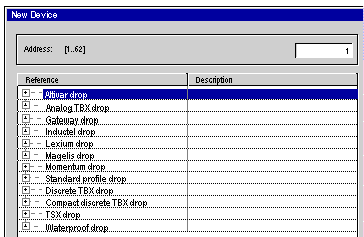
From the contextual menu, select New Device.
Result: the New Device screen appears.
 |
|
4
|
Enter the number of the connection point corresponding to the address.
By default, the Control Expert software offers the first address of the area selected in step 2.
|
|
5
|
In the Reference field, deploy the Gateway drop element by selecting [+].
|
|
6
|
In the Reference field, select the TBX SAP 10 module.
|
|
7
|
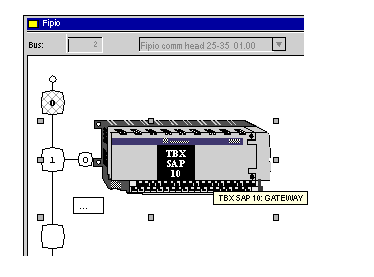
Validate with OK.
Result: the module appears in the Fipio configuration window.
 |
