|
MBP_MSTR Example – Write Modbus Object
|
|


|
(Original Document)
|
|
MBP_MSTR Example – Write Modbus Object
|
|
|
(Original Document)
|
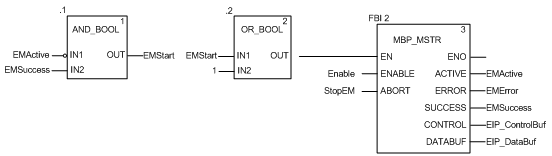
|
Input Pin
|
Variable
|
Data Type
|
|---|---|---|
|
ENABLE
|
Enable
|
BOOL
|
|
ABORT
|
StopEM
|
BOOL
|
|
Output Pin
|
Variable
|
Data Type
|
|---|---|---|
|
ACTIVE
|
EMActive
|
BOOL
|
|
ERROR
|
EMError
|
BOOL
|
|
SUCCESS
|
EMSuccess
|
BOOL
|
|
CONTROL
|
EIP_ControlBuf
|
Array of 10 INT
|
|
DATABUF
|
EIP_DataBuf
|
Array of 100 INT
|
|
Register
|
Description
|
Configure
|
Setting (hex)
|
|---|---|---|---|
|
CONTROL[0]
|
Operation:
High byte = 00 (unconnected)
Low byte = 0E (CIP explicit message)
|
Yes
|
16#000E
|
|
CONTROL[1]
|
Error status: read-only (written by operation)
|
No
|
16#0000
|
|
CONTROL[2]
|
Data buffer length = 20 (words)
|
Yes
|
16#0014
|
|
CONTROL[3]
|
Response offset: offset—in words (10)—for the beginning of the explicit message response in the databuffer
|
Yes
|
16#000A
|
|
CONTROL[4]
|
High byte = slot location (4) of the communication module in the backplane
Low byte = 00 (not used)
|
Yes
|
16#0400
|
|
CONTROL[5]1
|
IP address of the Ethernet communication module:
High byte = IP address byte 4 (192)
Low byte = IP address byte 3 (168)
|
Yes
|
16#C0A8
|
|
CONTROL[6]1
|
IP address of the Ethernet communication module:
High byte = IP address byte 2 (001)
Low byte = IP address byte 1 (012)
|
Yes
|
16#010C
|
|
CONTROL[7]
|
CIP request length (20) in bytes
|
Yes
|
16#0014
|
|
CONTROL[8]
|
Length of received response (written by operation)
|
No
|
16#0000
|
|
1. In this example, the control parameter handles the IP address 192.168.1.12 in the following order: Byte 4 = 192, Byte 3 = 168, Byte 2 = 1, Byte 1 - 12.
|
|||
|
Request word
|
High byte
|
Low byte
|
||
|---|---|---|---|---|
|
Description
|
Value (hex)
|
Description
|
Value (hex)
|
|
|
1
|
Request path size (in words)
|
16#02
|
EM Service: Write_Holding_Register
|
16#50
|
|
2
|
Request path: class assembly object (Modbus Object)
|
16#44
|
Request path: logical class segment (indicates an 8-bit object)
|
16#20
|
|
3
|
Request path: instance
|
16#01
|
Request path: logical instance segment (indicates an 8-bit instance)
|
16#24
|
|
4
|
First word to write (not used)
|
16#00
|
First word to write: value + %MW1 (i.e. start at zero based second word)
|
16#02
|
|
5
|
Number of words to write
|
16#00
|
Number of words to write: 5
|
16#05
|
|
6
|
Data words 1
|
16#00
|
Data words 1
|
16#6F
|
|
7
|
Data words 2
|
16#00
|
Data words 2
|
16#DE
|
|
8
|
Data words 3
|
16#01
|
Data words 3
|
16#4D
|
|
9
|
Data words 4
|
16#01
|
Data words 4
|
16#BC
|
|
10
|
Data words 5
|
16#02
|
Data words 5
|
16#2B
|
|
11
|
Service Code + response bit (read-only)
|
16#00
|
Service Code + response bit (read-only) response = D0
|
16#000
|
|
12
|
Service response (read only)
|
16#00
|
Service response (read only) success = 0
|
16#00
|
|
13
|
Location of first word to write response (read only)
|
16#00
|
Location of first word to write response (read only)
|
16#00
|
|
14
|
Number of words to write response (read only)
|
16#00
|
Number of words to write response (read only)
|
16#00
|
|
Request word
|
Value
|
|---|---|
|
1
|
16#0250
|
|
2
|
16#4420
|
|
3
|
16#0124
|
|
4
|
16#0002
|
|
5
|
16#0005
|
|
6
|
16#006F
|
|
7
|
16#00DE
|
|
8
|
16#014D
|
|
9
|
16#01BC
|
|
10
|
16#022B
|
|
11
|
16#0000
|
|
12
|
16#0000
|
|
13
|
16#0000
|
|
14
|
16#0000
|
|
Step
|
Action
|
|
|---|---|---|
|
1
|
In Control Expert, select Tools → Project Browser to open the Project Browser.
|
|
|
2
|
In the Project Browser, right-click Animation Tables → New Animation Table.
Result: A new animation table opens.
|
|
|
3
|
In the New Animation Table dialog, edit the following values:
|
|
|
Name
|
Type in a table name. For this example: EIP_DataBuf.
|
|
|
Functional Mode
|
Accept the default <None>.
|
|
|
Comment
|
Leave blank.
|
|
|
Number of animated characters
|
Type 100, representing the size of the data buffer in words.
|
|
|
4
|
The completed dialog looks like this:
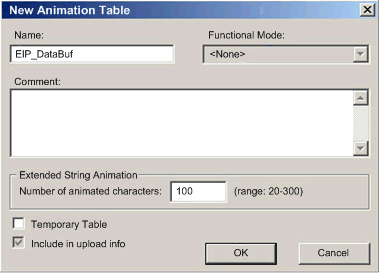 Click OK to close the dialog.
|
|
|
5
|
In the animation table’s Name column, type in the name of the variable assigned to the databuffer: EIP_DataBuf and press Enter. The animation table displays the EIP_DataBuf variable.
|
|
|
6
|
Expand the EIP_DataBuf variable to display its word array, where you can view the CIP response at words EIP_DataBuf(7-16):
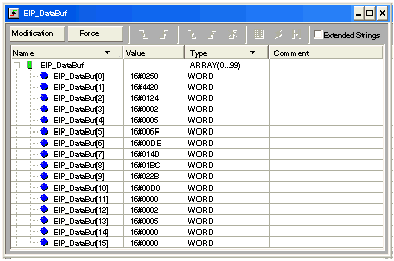 Note: Each word presents 2 bytes of data in little endian format, where the least significant byte is stored in the smallest memory address. For example, ‘50’ in EIP_DataBuf[0] is the low byte, and ‘02’ is the high byte.
|
|
